


Forescout FSCP - Forescout Certified Professional Exam
What is the default recheck timer for a NAC policy?
24 hours
8 hours
4 hours
12 hours
2 hours
The Answer Is:
BExplanation:
Comprehensive and Detailed Explanation From Exact Extract of Forescout Platform Administration and Deployment:
According to the Forescout Administration Guide - Policy Main Rule Advanced Options, the default recheck timer for a NAC policy is 8 hours.​
Default Policy Recheck Timer:
According to the official documentation:​
"By default, both matched endpoints and unmatched endpoints are rechecked every eight hours, and on any admission event."
This 8-hour default ensures that all endpoints are periodically re-evaluated against policy conditions, regardless of whether they currently match the policy.
Recheck Configuration:
According to the documentation:​
When you configure a policy's main rule advanced options:
Default Recheck Interval: 8 hours
Customizable Range: Can be configured from 1 hour to infinite (no recheck)
Applies to: All endpoints in the policy scope
Recheck Triggers:
According to the administration guide:​
Policies recheck when:
Recheck Timer Expires - Every 8 hours by default
Admission Event - When specific network events occur
SecureConnector Event - When SC status changes
Referenced Documentation:
Forescout Platform Policy Main Rule Advanced Options​
Main Rule Advanced Options​
How can scripts be run when the Endpoint Remote Inspection method is set to "Using MS-WMI"?
Using Task Scheduler but this has limitations
Using WMI, which will allow interactive scripts to run
Using RRP, which will allow interactive scripts to run
Using WMI, but they may not be run interactively using this method
Using fsprocserv.exe, but scripts may not be run interactively using this method
The Answer Is:
DExplanation:
Comprehensive and Detailed Explanation From Exact Extract of Forescout Platform Administration and Deployment:
According to the Forescout CounterACT HPS Inspection Engine Configuration Guide Version 10.8, when the Endpoint Remote Inspection method is set to "Using MS-WMI," scripts are run using WMI, but they may not be run interactively using this method.​
MS-WMI Script Execution:
According to the HPS Inspection Engine guide:​
"When Remote Inspection uses MS-WMI, run scripts with
MS-WMI – note that interactive scripts are not supported by WMI on all Windows endpoints. Functionality that relies on interactive endpoint scripts is not implemented when you choose this option. For example, the Start Antivirus and Update Antivirus actions require interactive scripts to manage some antivirus packages."
Interactive Script Limitations with WMI:
According to the documentation:​
"WMI does not support interactive scripts (such as scripts that support Guest Registration and other HTTP-based actions) on some Windows endpoints."
How WMI Scripts Are Run:
According to the documentation:​
When using WMI for script execution:
Background Scripts - Most background scripts can run via WMI
Interactive Scripts - NOT supported by WMI on all endpoints
Workaround for Interactive Scripts - CounterACT uses:
fsprocsvc service (fsprocsvc.exe) - For interactive script support
Microsoft Task Scheduler - Alternative for interactive scripts
WMI vs. Other Methods:
According to the documentation:​
Method
Interactive Scripts
Limitations
MS-WMI
Not supported on all endpoints
Limited to background scripts
fsprocsvc
Supported
Service must be running
Task Scheduler
Not on Vista/7
Legacy OS limitations
Script Execution Flow with MS-WMI:
According to the documentation:​
"CounterACT runs most background scripts using WMI. WMI does not support interactive scripts (such as scripts that support Guest Registration and other HTTP-based actions) on some Windows endpoints. CounterACT uses the fsprocsvc service or Microsoft Task Scheduler to run interactive scripts on these endpoints."
Why Other Options Are Incorrect:
A. Using Task Scheduler but with limitations - Task Scheduler is an ALTERNATIVE to WMI, not what MS-WMI uses
B. Using WMI, which will allow interactive scripts - Incorrect; WMI does NOT allow interactive scripts
C. Using RRP, which will allow interactive scripts - RRP is Remote Registry Protocol, not the script execution method with MS-WMI
E. Using fsprocserv.exe, but scripts may not be run interactively - fsprocserv.exe (fsprocsvc) DOES support interactive scripts; it's used as an alternative to overcome WMI limitations
Referenced Documentation:
CounterACT Endpoint Module HPS Inspection Engine Configuration Guide v10.8 - Script Execution Services section​
When Remote Inspection uses MS-WMI, run scripts with​
About MS-WMI​
Which of the following is true regarding Failover Clustering module configuration?
Once appliances are configured, then press the Apply button.
Segments should be assigned to appliance folders and NOT to the individual appliances.
You can see the status of failover by selecting IP Assignments and failover tab.
Configure the second HA on the Secondary node.
Place only the EM to participate in failover in the folder.
The Answer Is:
BExplanation:
Comprehensive and Detailed Explanation From Exact Extract of Forescout Platform Administration and Deployment:
According to the Forescout Resiliency Solutions User Guide and Failover Clustering configuration documentation, the correct statement is: "Segments should be assigned to appliance folders and NOT to the individual appliances".​
Failover Clustering Folder Structure:
According to the Resiliency Solutions User Guide:​
"When configuring failover: Identify segments of the CounterACT Internal Network that should participate in failover, and assign these segments to the folder."
Key requirement:
"Clear statically assigned segments from Appliances in the failover cluster folder. Appliances in the failover cluster support only the network segments assigned to the folder. They cannot support individually assigned segments."
Segment Assignment Rules:
According to the documentation:​
text
Correct Configuration:
├─ Failover Cluster Folder
│ ├─ Assigned Segments: Segment1, Segment2, Segment3
│ ├─ Appliance A (no individual segments)
│ ├─ Appliance B (no individual segments)
│ └─ Appliance C (no individual segments)
NOT this way:
text
Incorrect Configuration:
├─ Failover Cluster Folder
│ ├─ Appliance A: Segment1
│ ├─ Appliance B: Segment2
│ └─ Appliance C: Segment3
Configuration Steps:
According to the official procedure:​
Create or select an appliance folder
Place appliances in the folder
Assign segments to the FOLDERÂ (not individual appliances)
Clear any statically assigned segments from individual appliances
Configure the folder as a failover cluster
Why Other Options Are Incorrect:
A. Once appliances are configured, then press the Apply button - Failover uses "Configure Failover" button, not "Apply"
C. See failover status by selecting IP Assignments and failover tab - It's the "IP Assignment and Failover pane," not a separate tab
D. Configure the second HA on the Secondary node - Incorrect; failover clustering is configured at the folder level, not on individual nodes
E. Place only the EM to participate in failover - Incorrect; member appliances participate; EM has separate HA
Referenced Documentation:
ForeScout CounterACT Resiliency Solutions User Guide - Failover Clustering section​
Define a Forescout Platform failover cluster​
Forescout Platform Failover Clustering​
Work with Appliance Folders​
When troubleshooting a SecureConnector management issue for a Windows host, how would you determine if SecureConnector management packets are reaching CounterACT successfully?
Use the tcpdump command and filter for tcp port 10005 traffic from the host IP address reaching the monitor port
Use the tcpdump command and filter for tcp port 2200 traffic from the host IP address reaching the management port
Use the tcpdump command and filter for tcp port 10003 traffic from the host IP address reaching the monitor port
Use the tcpdump command and filter for tcp port 2200 traffic from the host IP address reaching the management port
Use the tcpdump command and filter for tcp port 10003 traffic from the host IP address reaching the management port
The Answer Is:
EExplanation:
Comprehensive and Detailed Explanation From Exact Extract of Forescout Platform Administration and Deployment:
According to the Forescout Quick Installation Guide and official port configuration documentation, SecureConnector for Windows uses TCP port 10003, and the management packets should be captured from the host IP address reaching the management port (not the monitor port). Therefore, the correct command would use tcpdump filtering for tcp port 10003 traffic reaching the management port.​
SecureConnector Port Assignments:
According to the official documentation:​
SecureConnector Type
Port
Protocol
Function
Windows
10003/TCP
TLS (encrypted)
Allows SecureConnector to create a secure encrypted TLS connection to the Appliance from Windows machines
OS X
10005/TCP
TLS (encrypted)
Allows SecureConnector to create a secure encrypted TLS connection to the Appliance from OS X machines
Linux
10006/TCP
TLS 1.2 (encrypted)
Allows SecureConnector to create a secure connection over TLS 1.2 to the Appliance from Linux machines
Port 2200 is for Legacy Linux SecureConnector (older versions using SSH encryption), not for Windows.​
Forescout Appliance Interface Types:
Management Port - Used for administrative access and SecureConnector connections
Monitor Port - Used for monitoring and analyzing network traffic
Response Port - Used for policy actions and responses
SecureConnector connections reach the management port, not the monitor port.​
Troubleshooting SecureConnector Connectivity:
To verify that SecureConnector management packets from a Windows host are successfully reaching CounterACT, use the following tcpdump command:​
bash
tcpdump -i [management_interface] -nn "tcp port 10003 and src [windows_host_ip]"
This command:
Monitors the management interface
Filters for TCP port 10003 traffic
Captures packets from the Windows host IP address reaching the management port
Verifies bidirectional TLS communication
Why Other Options Are Incorrect:
A. tcp port 10005 from host IP reaching monitor port - Port 10005 is for OS X, not Windows; should reach management port, not monitor port
B. tcp port 2200 reaching management port - Port 2200 is for legacy Linux SecureConnector with SSH, not Windows
C. tcp port 10003 reaching monitor port - Port 10003 is correct for Windows, but should reach management port, not monitor port
D. tcp port 2200 reaching management port - Port 2200 is for legacy Linux SecureConnector, not Windows
SecureConnector Connection Process:
According to the documentation:​
SecureConnector on the Windows endpoint initiates a connection to port 10003
Connection is established to the Appliance's management port
When SecureConnector connects to an Appliance or Enterprise Manager, it is redirected to the Appliance to which its host is assigned
Ensure port 10003 is open to all Appliances and Enterprise Manager for transparent mobility
Referenced Documentation:
Forescout Quick Installation Guide v8.2​
Forescout Quick Installation Guide v8.1​
Port configuration section: SecureConnector for Windows
Why would the patch delivery optimization mechanism used for Windows 10 updates be a potential security concern?
It can be configured to use a peer-to-peer file sharing protocol
CounterACT cannot initiate Windows updates for Windows 10 devices
It uses a peer-to-peer file sharing protocol by default
The registry DWORD controlling this behavior cannot be changed
It always uses a peer-to-peer file sharing protocol
The Answer Is:
AExplanation:
Comprehensive and Detailed Explanation From Exact Extract of Forescout Platform Administration and Deployment:
According to the Windows Update Delivery Optimization documentation and security analysis, the potential security concern with patch delivery optimization for Windows 10 updates is that it CAN BE CONFIGURED to use a peer-to-peer file sharing protocol. While the feature includes security mechanisms like cryptographic signing, the capability to enable P2P sharing does create potential security concerns depending on the configuration.​
Windows Update Delivery Optimization Overview:
According to the Windows Delivery Optimization documentation:​
"Windows Update Delivery Optimization is a feature in Microsoft's Windows designed to improve the efficiency of downloading and distributing updates. Instead of each device independently downloading updates from Microsoft's servers, Update Delivery Optimization allows devices to share update files with each other, either within a local network or over the internet. This peer-to-peer (p2p) approach reduces bandwidth consumption and accelerates the update process."
Configuration Flexibility:
According to the documentation:​
The P2P feature is configurable, not mandated:
Default Setting - By default, Delivery Optimization is enabled for local network sharing
Configurable Options:
PCs on my local network only (safer)
PCs on my local network and the internet (broader sharing, higher risk)
Disabled entirely
Security Concerns Related to P2P Configuration:
According to the security analysis:​
When P2P is enabled, potential concerns include:
Network Isolation Risks - In firewalled or segmented networks, P2P discovery can expose endpoints
Bandwidth Consumption - Improperly configured P2P can saturate network resources
Peer Discovery Vulnerabilities - Devices must discover each other, potentially exposing endpoints
Internet-based Sharing Risks - When "internet peers" are enabled, updates are shared across the internet
Privacy Implications - Devices communicating for update sharing may leak information
Cryptographic Protection Does NOT Eliminate Configuration Risk:
According to the documentation:​
"While Update Delivery Optimization ensures that all update files are cryptographically signed and verified before installation, some organizations may still be concerned about allowing peer-to-peer data sharing."
While the updates themselves are protected, the act of enabling P2P configuration creates the security concern.
Why Other Options Are Incorrect:
B. CounterACT cannot initiate Windows updates for Windows 10Â - Incorrect; CounterACT can initiate Windows updates; this is not the security concern
C. It uses peer-to-peer by default - Incorrect; while enabled by default for local networks, internet P2P sharing requires explicit configuration
D. The registry DWORD cannot be changed - Incorrect; the DO modes registry value (DODownloadMode) CAN be changed via GPO or registry
E. It always uses peer-to-peer - Incorrect; P2P is configurable, not mandatory; organizations can disable it entirely
Registry DWORD Configuration Options:
According to the Windows documentation:​
The DODownloadMode DWORD value can be configured to:
0Â = HTTP only, no peering (addresses security concern)
1Â = HTTP blended with local peering (moderate risk)
3Â = HTTP blended with internet peering (higher risk - the security concern)
99Â = Simple download mode
This demonstrates that P2PÂ can be configured, which is the security concern mentioned in the question.
Referenced Documentation:
What is Windows Update Delivery Optimization - Scalefusion Blog​
Windows Delivery Optimization: Risks & Challenges - LinkedIn Article​
Introduction to Windows Update Delivery Optimization - Sygnia Analysis​
Which of the following are true about the comments field of the CounterACT database? (Choose two)
Endpoints may have multiple comments assigned to them
It cannot be edited manually by a right click administrator action, it can only be edited in policy by using the action "Run Script on CounterACT"
It can be edited manually by a right click administrator action, or it can be edited in policy by using the action "Run Script on CounterACT"
Endpoints may have exactly one comment assigned to them
It can be edited manually by a right click administrator action, or it can be edited in policy by using the action "Run Script on Windows"
The Answer Is:
A, CExplanation:
Comprehensive and Detailed Explanation From Exact Extract of Forescout Platform Administration and Deployment:
According to the Forescout Administration Guide - Device Information Properties documentation, the correct statements about the comments field are: Endpoints may have multiple comments assigned to them (A) and it can be edited manually by a right click administrator action, or it can be edited in policy by using the action "Run Script on CounterACT" (C).​
Comments Field Overview:
According to the Device Information Properties documentation:​
"(Right-click an endpoint in the Detections pane to add a comment. The comment is retained for the life of the endpoint in the Forescout Console.)"
Multiple Comments Support:
According to the ForeScout Administration Guide:​
Endpoints support multiple comments that can be added over time:
Manual Comments - Administrators can right-click an endpoint and add comments
Policy-Generated Comments - Policies can automatically add comments when conditions are met
Cumulative - Multiple comments are retained and displayed together
Persistent - Comments are retained for the life of the endpoint
Manual Comments via Right-Click:
According to the documentation:​
Administrators can manually edit the comments field by:
Right-clicking on an endpoint in the Detections pane
Selecting "Add comment" or "Edit comment" option
Entering the comment text
Saving the comment
This manual method is readily available and frequently used for operational notes.
Policy-Based Comments via "Run Script on CounterACT":
According to the Administration Guide:​
Policies can also edit the comments field using the "Run Script on CounterACT" action:
Create or edit a policy
Add the "Run Script on CounterACT" action
The script can modify the Comments host property
When the policy condition is met, the script runs and updates the comment field
Why Other Options Are Incorrect:
B. Cannot be edited manually...only via Run Script on CounterACTÂ - Incorrect; manual right-click editing is explicitly supported
D. Endpoints may have exactly one comment - Incorrect; multiple comments are supported
E. Can be edited...by using action "Run Script on Windows"Â - Incorrect; the action is "Run Script on CounterACT," not "Run Script on Windows"
Comments Field Characteristics:
According to the documentation:​
The Comments field:
Supports Multiple Entries - More than one comment can be added
Manually Editable - Right-click administrative action available
Policy Editable - "Run Script on CounterACT" action can modify it
Persistent - Retained for the life of the endpoint
Searchable - Comments can be used in policy conditions
Audit Trail - Provides documentation of endpoint history
Usage Examples:
According to the Administration Guide:​
Manual Comments:
"Device moved to Building C - 2024-10-15"
"User reported software issue"
"Awaiting quarantine release approval"
Policy-Generated Comments:
Vulnerability compliance policy: "Failed patch compliance check"
Security policy: "Detected unauthorized application"
Remediation policy: "Scheduled for antivirus update"
Multiple such comments can accumulate on a single endpoint over time.
Referenced Documentation:
Forescout Administration Guide - Device Information Properties​
ForeScout CounterACT Administration Guide - Comments field section
Which two of the following are main uses of the User Directory plugin? (Choose Two)
Verify authentication credentials
Define authentication traffic
Perform Radius authorization
Query user details
Populate the Dashboard
The Answer Is:
A, DExplanation:
Comprehensive and Detailed Explanation From Exact Extract of Forescout Platform Administration and Deployment:
According to the Forescout User Directory Plugin documentation, the two main uses of the User Directory plugin are: Verify authentication credentials (A) and Query user details (D).​
Main Functions of User Directory Plugin:
According to the official documentation:​
"The User Directory plugin resolves endpoint user details and performs user authentication via configured internal and external directory servers."
The plugin's two primary functions are:
Authenticate Users - Verify/validate authentication credentials
Resolve User Information - Query and retrieve user details from directory servers
Verifying Authentication Credentials:
According to the documentation:​
The User Directory plugin:
Validates user credentials against configured directory servers (Active Directory, LDAP, etc.)
Performs authentication for:
Endpoint user authentication
Console login authentication
Guest user registration
RADIUS authentication
Querying User Details:
According to the documentation:​
The User Directory plugin:
Resolves endpoint user information including:
User name and identity
Group membership
User properties and attributes
Department and organizational unit information
Retrieves details via LDAP queries when "Use as directory" is enabled
Why Other Options Are Incorrect:
B. Define authentication traffic - The plugin doesn't define traffic; it queries authentication servers for user information
C. Perform Radius authorization - This is the function of the RADIUS Plugin, not the User Directory plugin (though they work together)
E. Populate the Dashboard - Dashboard population is not a primary function of the User Directory plugin
User Directory vs. RADIUS Plugin:
According to the documentation:​
Function
User Directory
RADIUS
Authenticate credentials
✓Yes
✓Yes (primary)
Query user details
✓Yes (primary)
✗No
802.1X authentication
✗No
✓Yes
Authorization
Partial
✓Yes (primary)
Referenced Documentation:
User Directory plugin overview​
About the User Directory Plugin​
Initial Setup – User Directory​
What best defines a 'Post-Connect Methodology'?
802.1X is a flavor of Post-Connect
Guilty until proven innocent
Innocent until proven guilty
Used subsequent to pre-connect
Assessed for critical compliance before IP address is assigned
The Answer Is:
CExplanation:
Comprehensive and Detailed Explanation From Exact Extract of Forescout Platform Administration and Deployment:
According to the Forescout Blog on Post-Connect Access Controls and the Comply-to-Connect framework documentation, a Post-Connect Methodology is best defined as treating endpoints as "Innocent until proven guilty".​
Definition of Post-Connect Methodology:
According to the official documentation:​
"Post-connect" is described as treating endpoints as innocent until they are proven guilty. They can connect to the network, during and after which they are assessed for acceptance criteria."
How Post-Connect Works:
According to the Post-Connect Access Controls blog:​
Initial Connection - Endpoints are allowed to connect to the network immediately (innocent)
Assessment During/After Connection - After connecting, endpoints are assessed for acceptance criteria
Compliance Checking - Endpoints are checked for:
Corporate asset status (must be company-owned)
Security compliance (antivirus, patches, encryption, etc.)
Remediation or Quarantine - Based on assessment results:
Compliant endpoints: Full access
Non-compliant endpoints: Placed in quarantine for remediation
Post-Connect vs. Pre-Connect:
According to the Comply-to-Connect documentation:​
Pre-Connect - "Guilty until proven innocent" - Endpoint must prove compliance BEFORE getting network access
Post-Connect - "Innocent until proven guilty" - Endpoint connects first, then compliance is assessed
Benefits of Post-Connect Methodology:
According to the documentation:​
"The greatest benefit to the post-connect approach is a positive user experience. Unless a system is out of compliance and ends up in a quarantine, your company's users have no idea access controls are even taking place on the network."
Acceptance Criteria in Post-Connect:
According to the framework:​
Corporate Asset Verification - Determines if the endpoint belongs to the organization
Compliance Assessment - Checks for:
Updated antivirus
Patch levels
Disk encryption status
Security tool functionality
If an endpoint fails these criteria, it's placed in quarantine (controlled network access) rather than being completely blocked.
Why Other Options Are Incorrect:
A. 802.1X is a flavor of Post-Connect - 802.1X is a pre-connect access control method (requires authentication before network access)
B. Guilty until proven innocent - This describes pre-connect methodology, not post-connect
D. Used subsequent to pre-connect - While post-connect can follow pre-connect, this doesn't define what post-connect is
E. Assessed for critical compliance before IP address is assigned - This describes pre-connect methodology
Referenced Documentation:
Forescout Blog - Post-Connect Access Controls​
Comply-to-Connect Brief - Pre-connect vs Post-connect comparison​
Achieving Comply-to-Connect Requirements with Forescout​
When configuring policy conditions, which of the statements is true regarding this image?
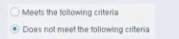
Select one:
Negates the criteria as part of the property
Modifies the irresolvable condition to TRUE
Generates a NOT condition in the sub-rule condition
Irresolvable hosts would match the condition
Modifies the evaluate irresolvable condition to FALSE
The Answer Is:
AExplanation:
Based on the policy condition image showing "Does not meet the following criteria", the correct statement is that it negates the criteria as part of the property.​
Understanding "Does not meet the following criteria":
According to the Forescout Administration Guide:​
The "Does not meet the following criteria" radio button option in policy conditions creates a logical negation of the condition:
"Meets the following criteria"Â - Endpoint matches if the condition is true
"Does not meet the following criteria"Â - Endpoint matches if the condition is FALSE (negated)
How the Negation Works:
According to the documentation:​
"Use the AND value between both properties: Windows>Manageable Domain>Does not meet the following criteria"
This syntax shows that "Does not meet the following criteria" negates the entire criteria evaluation:
Normal condition: "Windows Antivirus Running = True"
Result: Matches endpoints WITH antivirus running
Negated condition: "Windows Antivirus Running Does not meet the following criteria (= True)"
Result: Matches endpoints WITHOUT antivirus running (negates the criteria)
Negation Happens at Property Level:
The negation is applied as part of the property evaluation, not as a separate NOT operator. When you select "Does not meet the following criteria":
The condition is evaluated normally
The result is then negated/inverted
The endpoint matches only if the negated result is true
Why Other Options Are Incorrect:
B. Modifies the irresolvable condition to TRUEÂ - "Does not meet the following criteria" doesn't specifically affect irresolvable property handling
C. Generates a NOT condition in the sub-rule condition - The negation is part of this property's evaluation, not a separate sub-rule NOT condition
D. Irresolvable hosts would match the condition - "Does not meet the following criteria" doesn't specifically target irresolvable hosts
E. Modifies the evaluate irresolvable condition to FALSEÂ - This setting doesn't affect the "Evaluate irresolvable as" setting
Referenced Documentation:
Forescout Administration Guide v8.3​
Forescout Administration Guide v8.4​
ForeScout CounterACT Administration Guide - Policy Conditions section​
Manage Actions documentation​
Which policies require modification to allow network-based PC imaging of devices while blocking non-corporate devices? (Choose two)
Linux Manageability policy
Enterprise Discover policy
MAC Manageability policy
IoT Discover policy
Windows Enterprise Manageability policy
The Answer Is:
B, EExplanation:
Comprehensive and Detailed Explanation From Exact Extract of Forescout Platform Administration and Deployment:
According to the Forescout Administration Guide - Policy Templates, to allow network-based PC imaging of devices while blocking non-corporate devices, modifications are required to Enterprise Discover policy (B) and Windows Enterprise Manageability policy (E).​
Network-Based PC Imaging Requirements:
For network-based PC imaging (such as through WinPE boot environments or imaging servers), the system must:
Discover Corporate PCs - Identify legitimate corporate devices
Allow Imaging Traffic - Permit PXE boot and imaging protocol traffic
Block Non-Corporate Devices - Prevent unauthorized BYOD or guest devices from initiating imaging
Enterprise Discover Policy Modifications:
According to the policy templates documentation:​
The Enterprise Discover policy must be modified to:
Allow PXE boot traffic for legitimate devices
Permit discovery protocols from imaging servers
Distinguish between corporate and non-corporate devices
Windows Enterprise Manageability Policy Modifications:
According to the documentation:​
The Windows Enterprise Manageability policy must be modified to:
Identify Windows corporate devices
Permit imaging-related activities for corporate machines
Block or restrict imaging access for non-managed or guest devices
Why Other Options Are Incorrect:
A. Linux Manageability policy - Linux devices are not typically subjected to network-based Windows imaging; this policy manages Linux endpoint compliance, not PC imaging
C. MAC Manageability policy - MAC devices use different imaging methods; this policy is for managing macOS endpoints
D. IoT Discover policy - IoT devices are not imaged via PC imaging protocols; this policy handles IoT device discovery and classification
Imaging Access Control Workflow:
According to the administration guide:​
text
1. Enterprise Discover Policy (Modified)
- Identify devices attempting PXE/imaging boot
- Distinguish corporate vs. non-corporate
- Allow corporate devices to proceed
2. Windows Enterprise Manageability Policy (Modified)
- Verify device is corporate-managed
- Check compliance status
- Permit imaging for compliant devices
- Block non-compliant or unauthorized devices
Referenced Documentation:
Forescout Administration Guide - Policy Templates​
Policy Templates - Enterprise Discover and Windows Manageability sections​